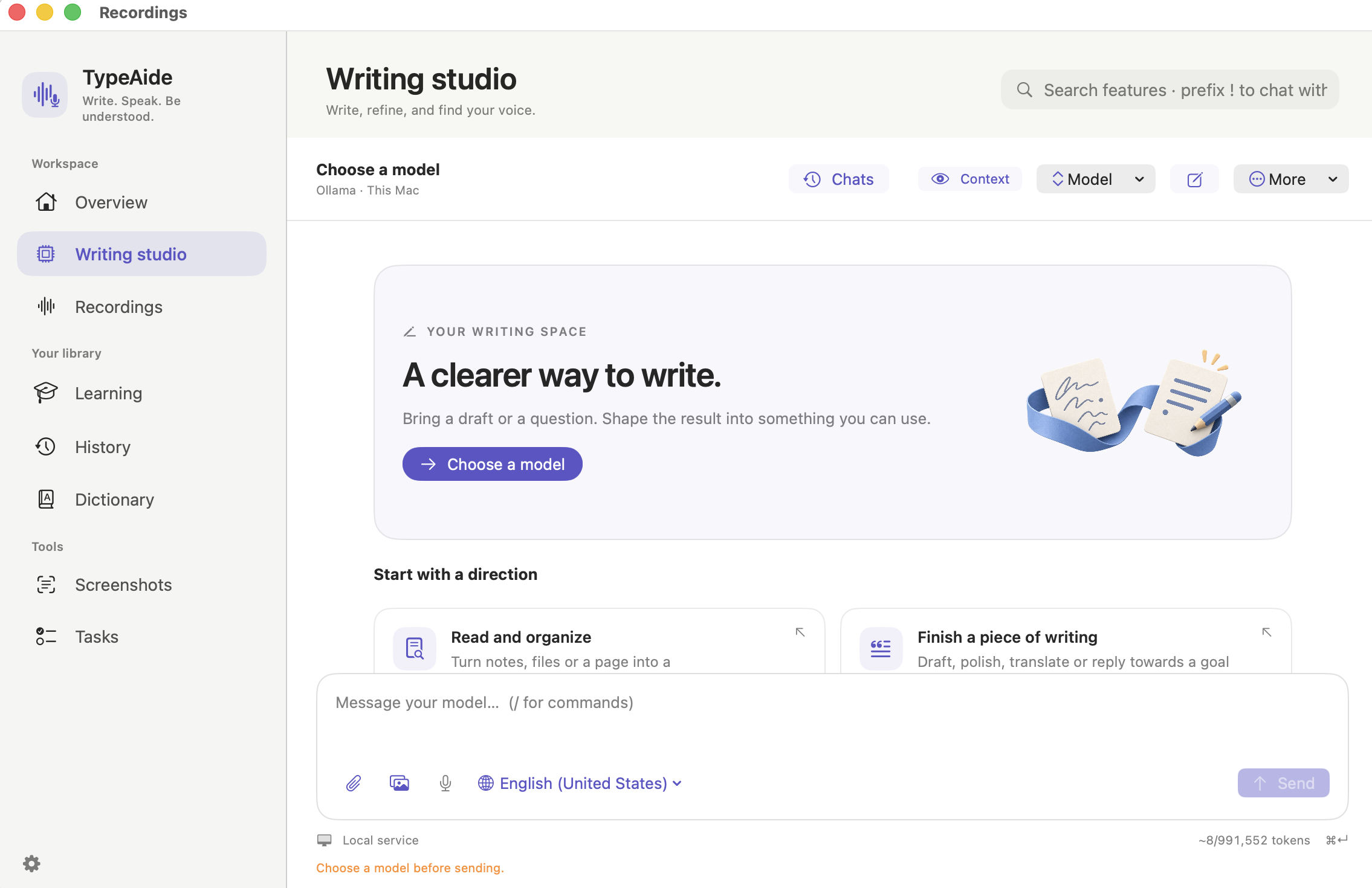
01 / WRITING STUDIO
A clearer way to write.
Bring a draft or a question. Polish grammar, translate, draft a reply, or work through a longer piece with your chosen model.
Keep writing, context, and follow-up requests in one place.
TYPEAIDE FOR MAC
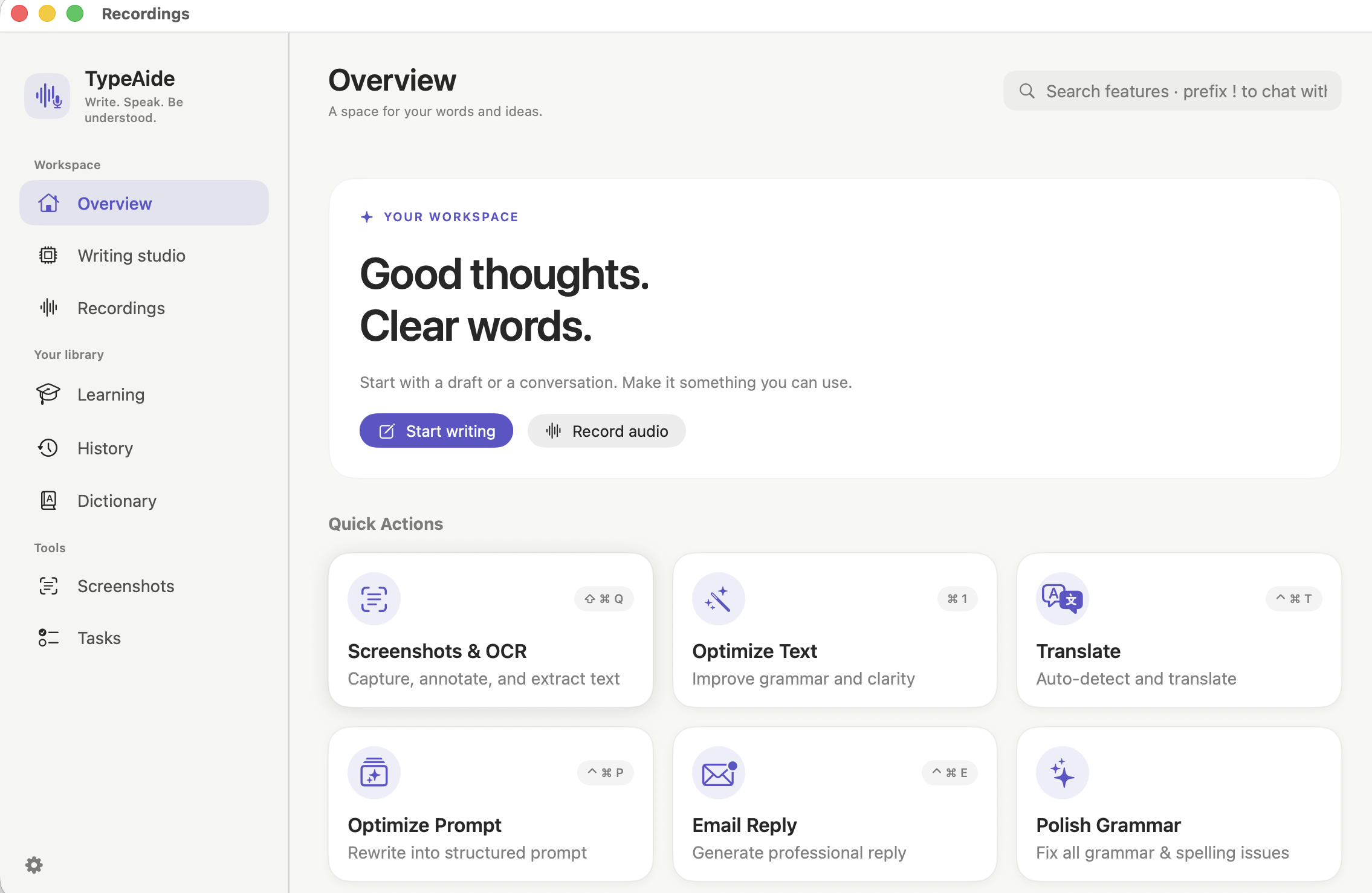
A space for your words and ideas. Shape a draft in the writing studio, turn a screenshot into editable text, and choose the AI that fits your work.
A CLOSER LOOK
From the first draft to the words you keep, find a workspace for each part of the job.
01 / WRITING STUDIO
Bring a draft or a question. Polish grammar, translate, draft a reply, or work through a longer piece with your chosen model.
Keep writing, context, and follow-up requests in one place.
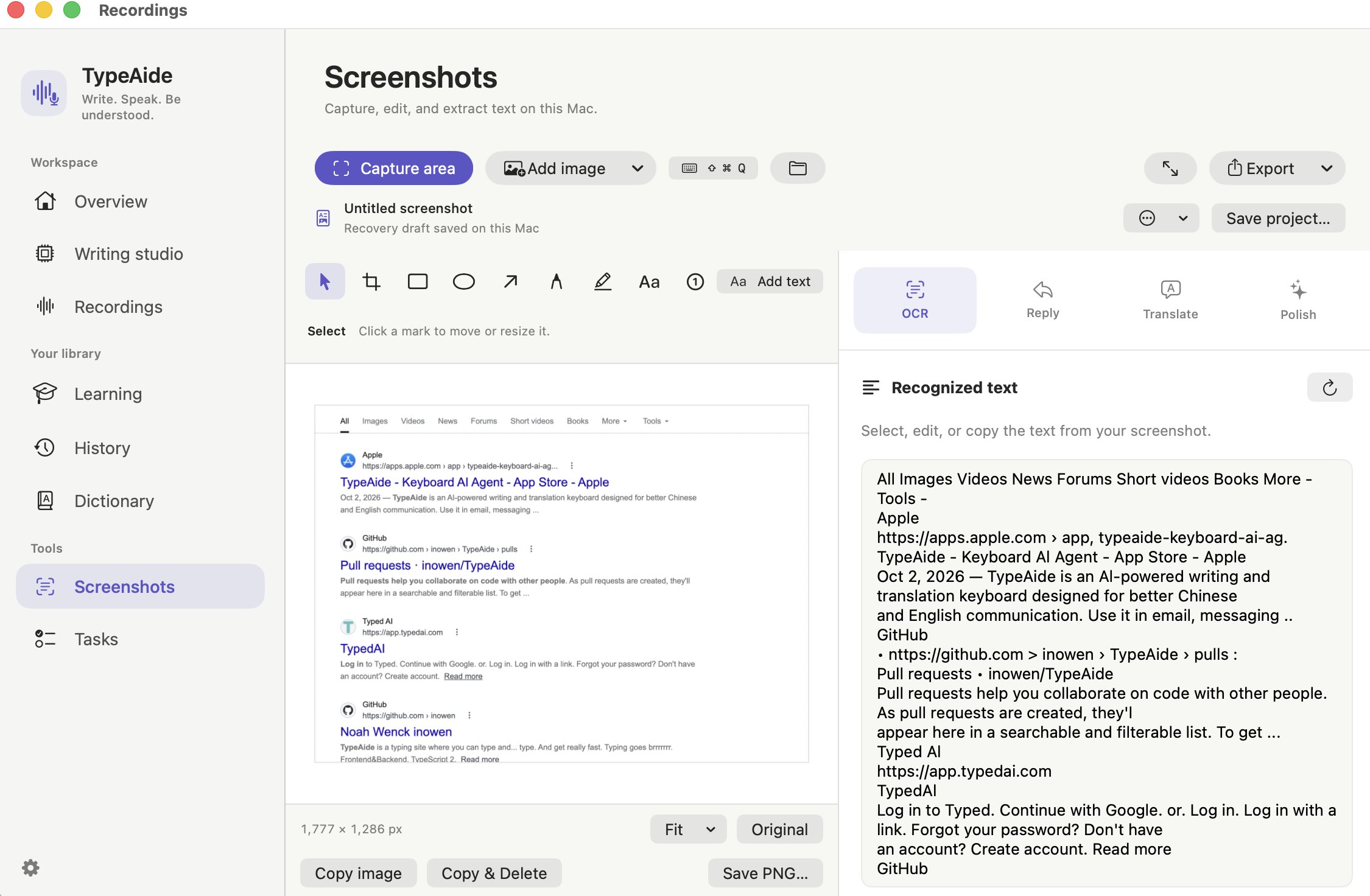
02 / SCREENSHOTS & OCR
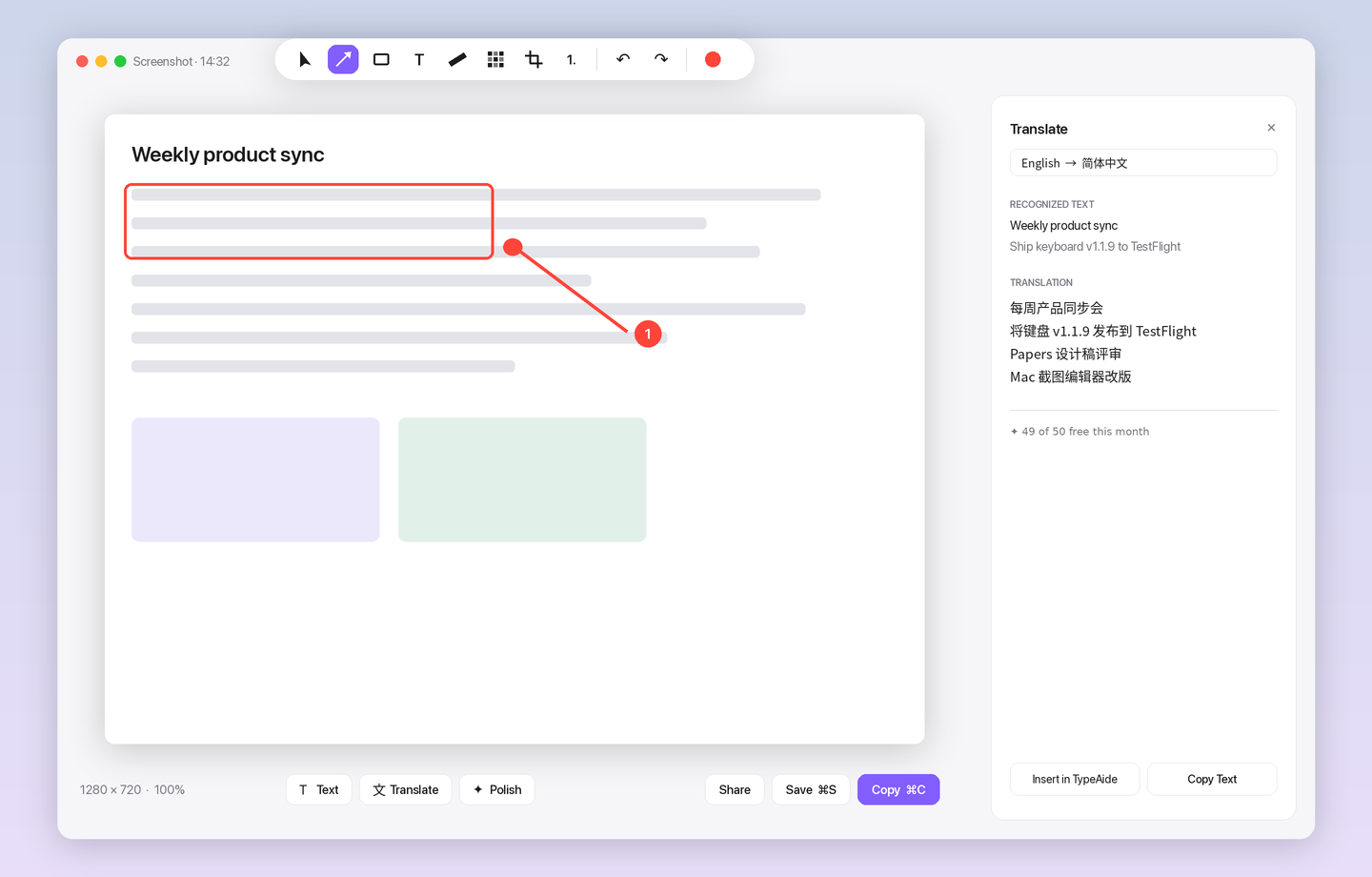
Capture an area or add an image. Annotate the screenshot and extract text on your Mac, then copy, edit, translate, or polish the words.
Save your image or keep an editable screenshot project.
NEW IN 1.1.9 SCREENSHOTS, REDESIGNED
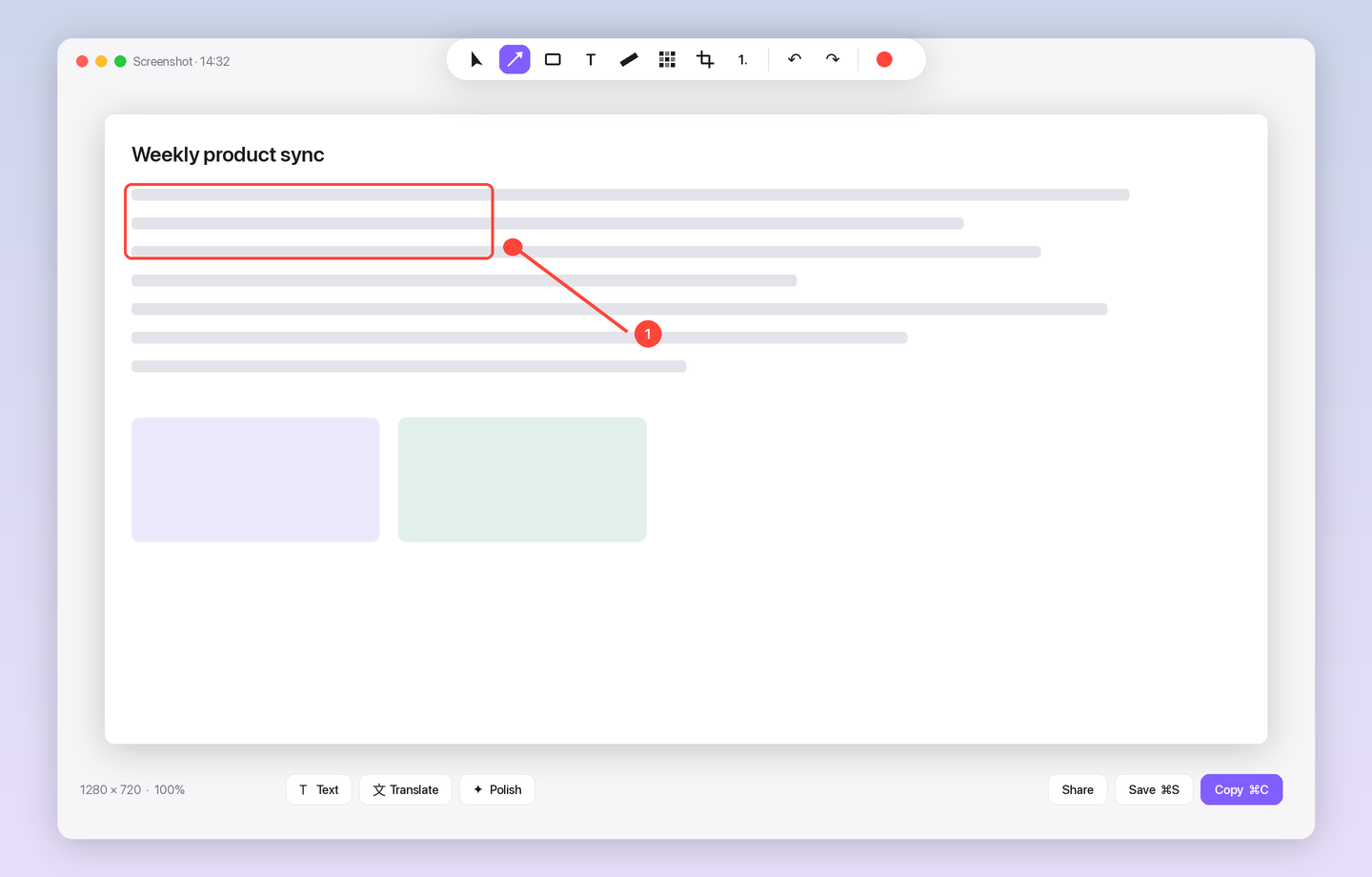
A capture now opens straight into a focused editor. No main window, no extra chrome. Just your image and one compact toolbar.
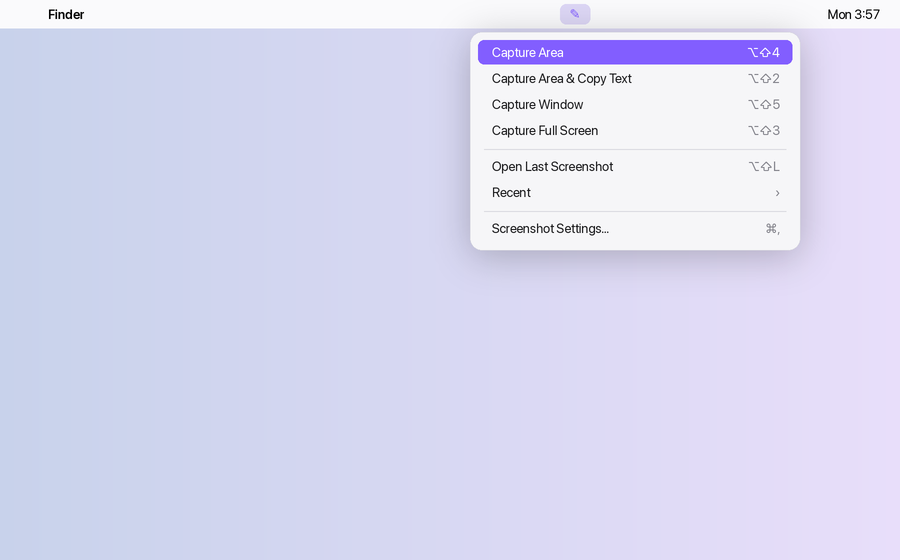
NEW IN 1.1.9 CAPTURE MENU & AI PANEL
Capture an area, a window, or the full screen. Copy the text from a capture without opening anything. Return to your last five captures from Recents.
Translate or Polish opens a side panel with the result, ready to copy. AI actions use your selected AI source.
03 / LOCAL AI
Discover, download, load, and compare local models through Ollama. See memory guidance and manage the models installed on your Mac.
Choose a local model for on-device generation, or connect a compatible online service in AI settings.
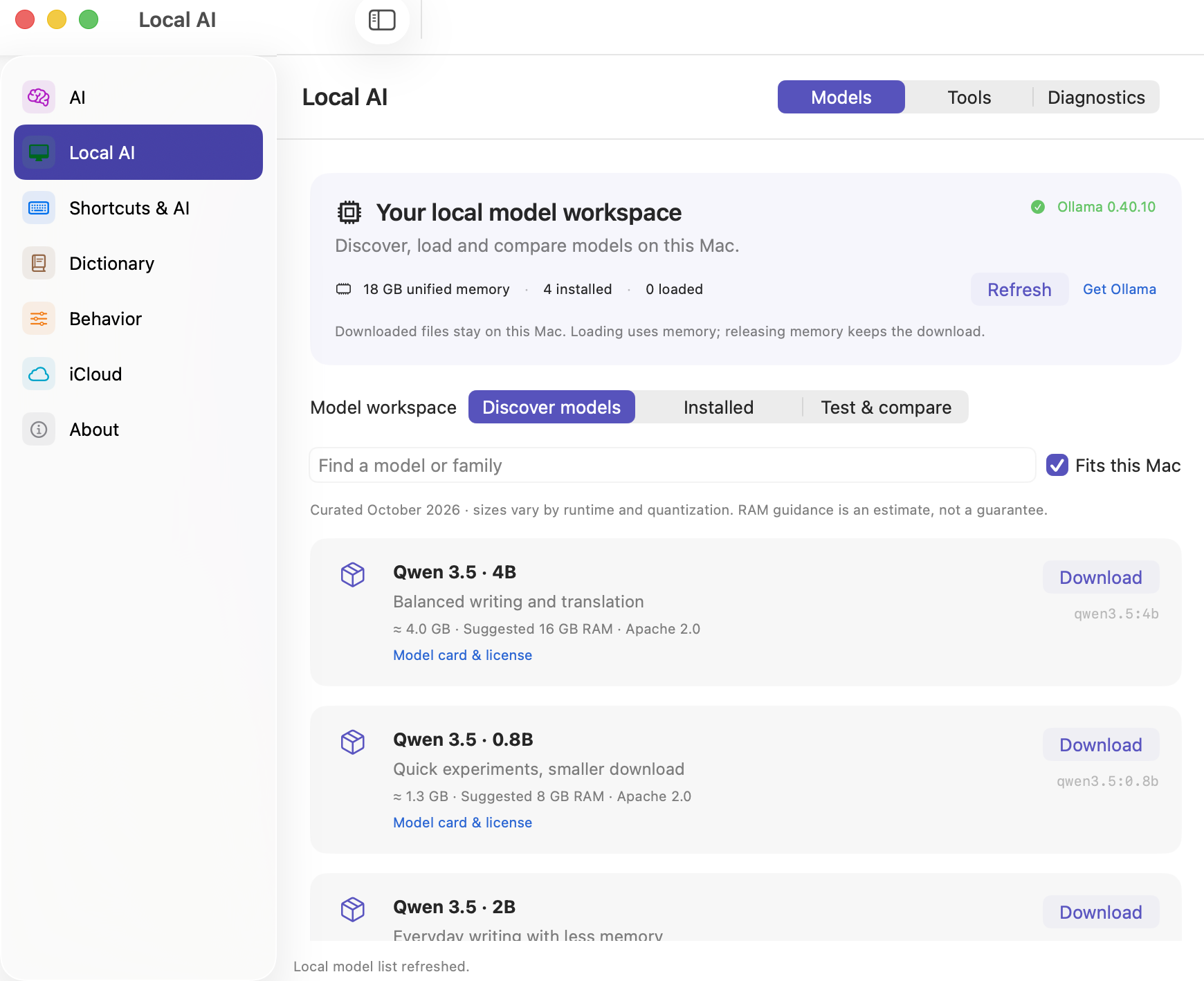
Screenshots show the Mac app in English. Available features and models depend on your app version, AI source, and Mac. Local model generation runs on your Mac; online services and optional sync use a network connection.
Turn a thought into another language or draft a response to an email. Review names, dates, and commitments before you send it.
Keep recordings and their words together, then return to the details when you need them.
Look up unfamiliar words and save useful vocabulary. Use word explanations and corrections to improve the next sentence you write.
| Action | Default shortcut | Use it for |
|---|---|---|
| Grammar optimization | ⌃ ⌘ G | Polish copied text |
| Translation | ⌃ ⌘ T | Translate a sentence or message |
| Word lookup | ⌃ ⌘ D | Explore a word and its usage |
| Screenshot capture | ⇧ ⌘ Q | Capture, annotate, and extract text |
If a shortcut is already used by another app, change it in TypeAide Settings. Copy text first when using clipboard actions.
Use a quick action for one sentence. Use the writing workspace when you want to compare versions, make a follow-up request, or return to a draft. Available models and features depend on the installed app version and your Mac.
Understand local, API, and Cloud options →